Overview
RR Metrics supports auto-sync for Topstep via the ProjectX API — connect once in Settings and your trades sync automatically with no manual exports needed. Note that the ProjectX API subscription costs approximately $29/month. If you prefer not to use auto-sync, you can also export your trade history as a CSV file directly from the Topstep dashboard and import it into RR Metrics in just a few clicks. Once imported, all trades appear in your journal with full analytics.
Step-by-Step: Exporting from Topstep
Log In to Your Topstep Account
Go to topstepx.com/trade and sign in with your Topstep credentials. Make sure you are viewing the correct funded or evaluation account if you have more than one.
Open the Trades Section
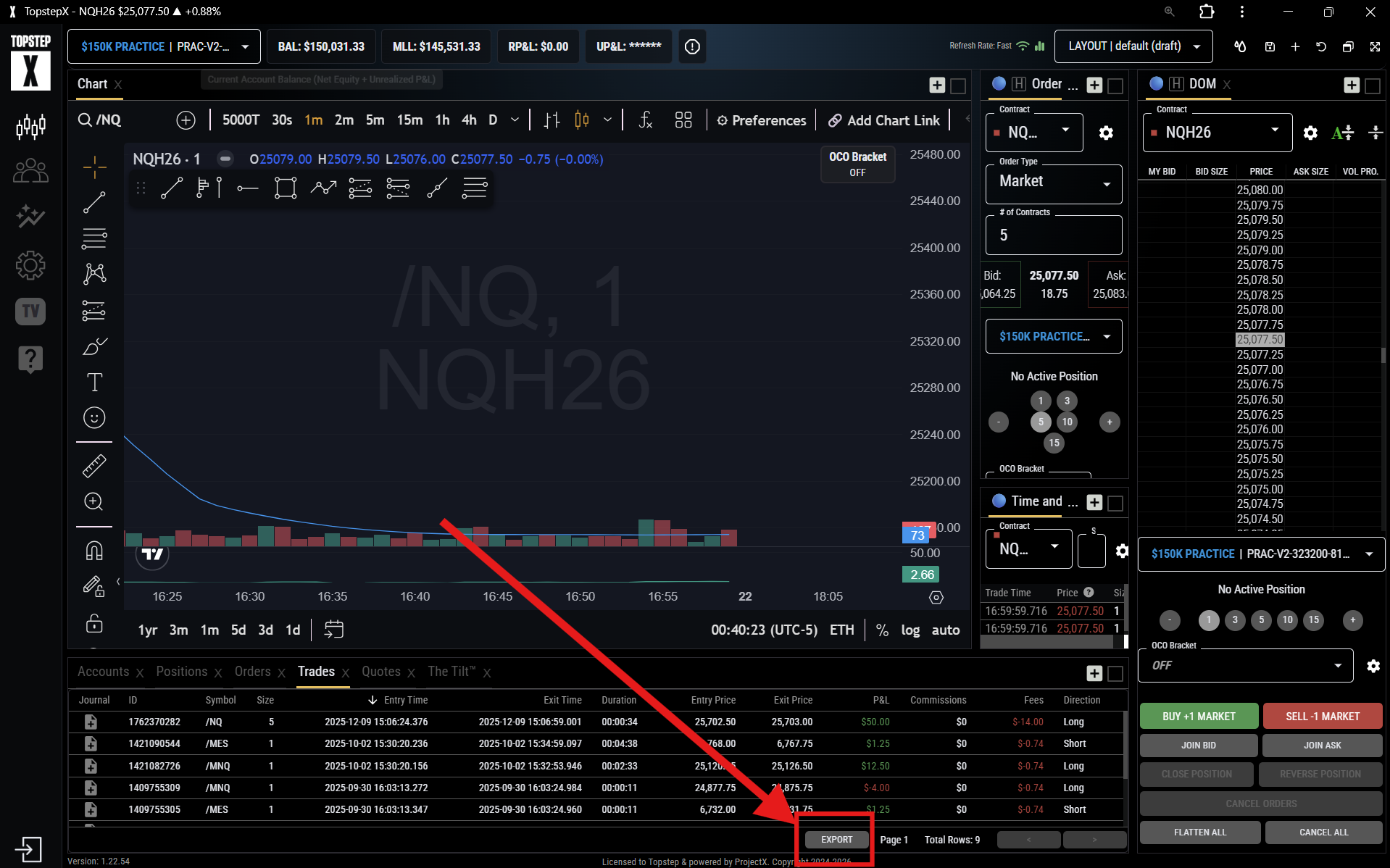
At the bottom of the trading platform, click Trades. This opens a table listing all your executed trades for the current account.
Click Export
In the bottom-right corner of the Trades panel, click the Export button. A popup will appear asking you to set a date range for the export.
Set the Date Range and Download
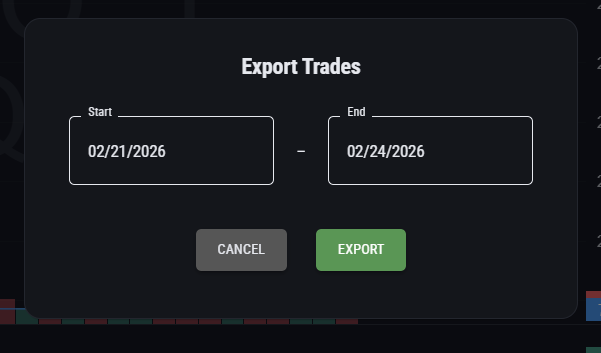
In the export popup, choose the date range that covers the trades you want to import. A few tips:
- If you are logging daily, set both dates to today so you only export today's trades.
- If you are backfilling your full history, set the start date to the first day you traded on this account and the end date to today.
- For ongoing use, start from the day after your last import to avoid re-importing the same trades (duplicates are skipped automatically, but keeping exports clean is good practice).
Once the range is set, click Export in the popup. Your browser will download a .csv file — note where it saves (typically your Downloads folder).
Step-by-Step: Importing into RR Metrics
Click Import CSV in RR Metrics
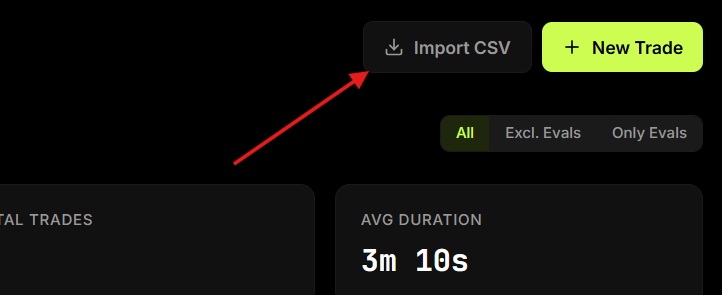
Switch back to RR Metrics and click the Import CSV button — found in the top-right corner of both the Dashboard and Trades pages, next to New Trade. Select the CSV file you just downloaded from Topstep. RR Metrics will parse the file and detect the columns automatically.
Confirm the Import
Click Import Trades. All trades are added to your journal immediately and your dashboard metrics update to reflect them. A confirmation message will show how many trades were imported and how many duplicates were skipped (if any).
Handling Multiple Accounts
If you have traded multiple Topstep evaluation or funded accounts, export and import each one separately. Use Tags to label trades by account — for example, tag a batch as Funded-1 or Eval-2 — so you can filter and compare performance per account in Analytics.
P&L and Commissions
Topstep's exported P&L figures may differ slightly from what you see in RR Metrics if the export includes or excludes commissions. RR Metrics calculates P&L as (exit − entry) × quantity by default.
If your Topstep statement shows a different figure, you can override the P&L on any individual trade using the Manual P&L field in the trade edit form.
Troubleshooting
- Import shows 0 trades — Check that you selected the correct file and that it is not empty. Open it in a spreadsheet app to verify it has data rows below the header.
- Column mapping has no matching options — Topstep occasionally changes their export column names. If a required field has no obvious match, open the CSV in Excel or Google Sheets, check the header row, and match manually.
- Trades show wrong prices or direction — Double-check your column mapping in the import dialog. Entry Price and Exit Price are easy to accidentally swap.
- Wrong date/time on trades — Topstep exports use Central Time (CT). RR Metrics stores and displays timestamps as provided, so verify the timezone in your Topstep account settings matches what you expect.
- Partial fills showing as separate trades — If your execution involved partial fills, the CSV may contain multiple rows for one logical trade. Review the preview carefully before confirming.