Overview
Tradovate offers two CSV export formats that RR Metrics supports natively. Both are auto-detected on upload — you go straight to the trade preview without any column mapping.
| Export type | Where to find it |
|---|---|
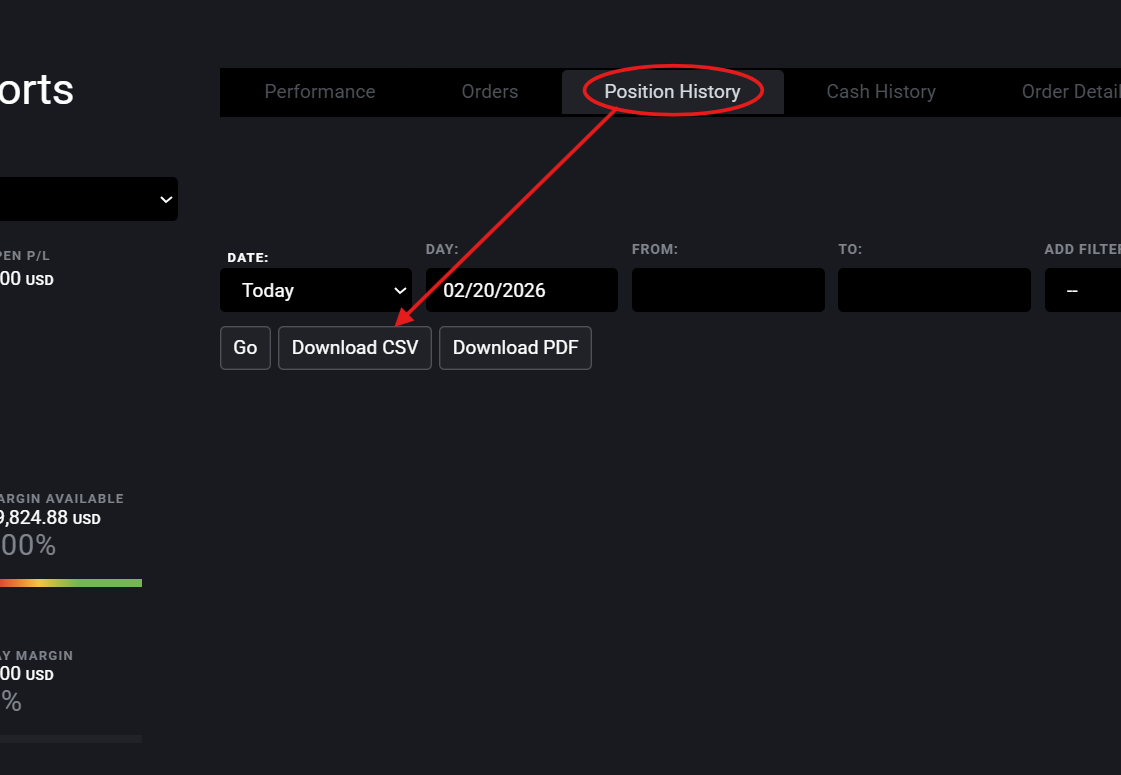
| Position History | Position History tab → Download CSV |
| Performance Report | Performance tab → Download CSV |
Log In to Tradovate
Go to trader.tradovate.com and sign in with your Tradovate credentials. Make sure you have selected the correct account (live or simulation) from the account selector.
Open the Account Settings
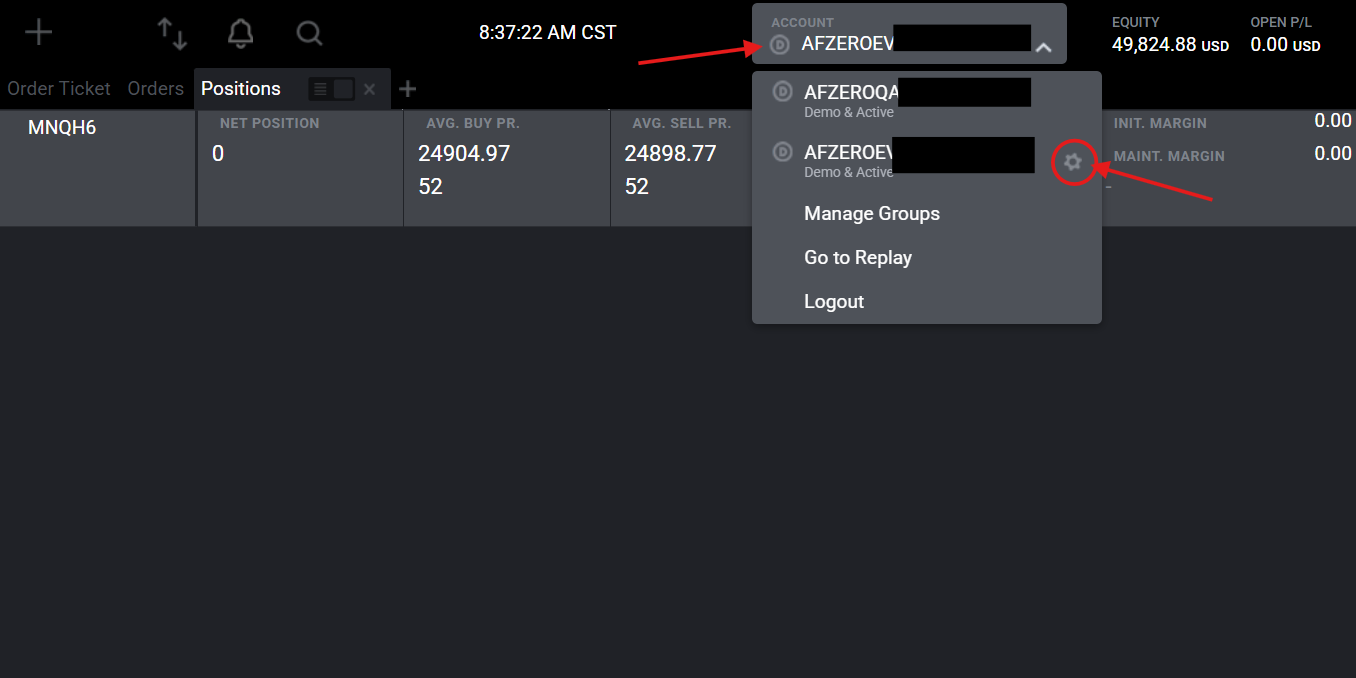
In the Tradovate platform, click the *Account Name* in the top panel. This shows all your connected accounts. Select the settings wheel next to the account you would like to export from.
Export the Positions CSV
Click the Download CSV in the Position History panel. Set the date range to cover the trades you want to import:
- For daily logging, set date to today.
- For backfilling your full history, set the start date to the first day you traded and the end date to today.
- For ongoing use, start from the day after your last import to keep exports clean — duplicates are skipped automatically.
Click Download CSV. Your browser downloads a .csv file, this means "comma separated values", so it doesn't contain any private information, simply basic information about your trades. You may open the file to verify.
Importing into RR Metrics
The steps below are identical for both export formats — RR Metrics detects which one you uploaded automatically.
Click Import CSV in RR Metrics
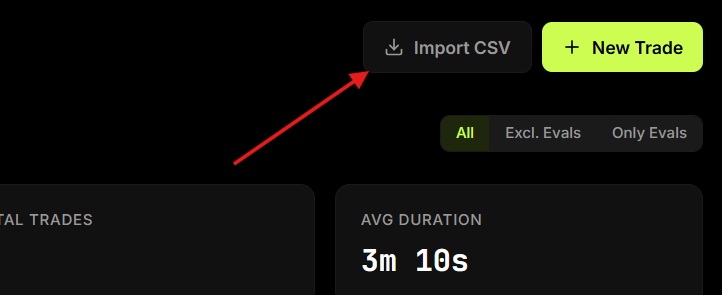
Switch to RR Metrics and click the Import CSV button in the top-right corner of the Dashboard or Trades page. Select the CSV file you just exported from Tradovate. RR Metrics will recognize the format automatically — no column mapping needed.
What Gets Imported
For both export formats, RR Metrics maps the following fields from Tradovate's CSV:
| Field | Positions CSV column | Fills CSV column |
|---|---|---|
| Ticker | Product | symbol |
| Entry price | Avg. Buy / Avg. Sell | buyPrice / sellPrice |
| Exit price | Avg. Sell / Avg. Buy | sellPrice / buyPrice |
| Quantity | Paired Qty | qty |
| Entry time | Bought / Sold Timestamp | boughtTimestamp / soldTimestamp |
| P&L | P/L | pnl |
Entry and exit timestamps swap depending on direction — for a long, entry = buy timestamp; for a short, entry = sell timestamp. Entry and exit prices follow the same logic.
Handling Multiple Accounts
If you trade multiple Tradovate accounts (live, sim, or funded prop accounts), export and import each one separately. Use Tags to label trades by account — for example Live-1 or Eval-Apex — so you can filter and compare performance per account in Analytics.
P&L and Commissions
Tradovate's exported P&L figures reflect gross P&L before commissions unless your account is configured otherwise. RR Metrics imports the P&L value from the CSV directly as a Manual P&L override, so what you see in the preview is what will be stored.
If you need to adjust a trade's P&L after importing (e.g. to deduct commissions), open the trade in the journal and edit the Manual P&L field.
Troubleshooting
- Format not auto-detected — If RR Metrics shows a column-mapping screen instead of jumping to the preview, the file headers don't match either known Tradovate format. Open the CSV in a spreadsheet app and confirm the header row matches what's documented above.
- Import shows 0 trades — Check that the exported file is not empty and that the date range you selected in Tradovate actually contains closed trades.
- Wrong direction on some trades — Direction is inferred from fill ID order. If a fill ID appears as 0 or blank in the export, that row may be skipped or default to long. Verify those rows manually in the preview.
- Ticker shows full contract name (e.g. NQH6) — RR Metrics strips the expiry suffix automatically. If the full symbol still appears, the contract name format may differ — you can edit the ticker on individual trades after importing.
- Timestamps look off — Tradovate timestamps are in UTC. RR Metrics attempts to store and display them as EST. If errors arise, feel free to contact hello@rrmetrics.com